Docs / Your journal
Your journal
Open any trade from the Trades list or the Calendar to see its fills and write about it: a note, tags and screenshots. The Calendar and Reports then show the patterns.
A trade's page

- Share makes a card of the trade to save as an image.
- Previous and Next step through your trades in order.
- Notes save by themselves a moment after you stop typing. Insert template fills in a note outline.
- The fill pairs show each entry with the exit that closed it, and the trade's gross, fees and net.
Tags and screenshots
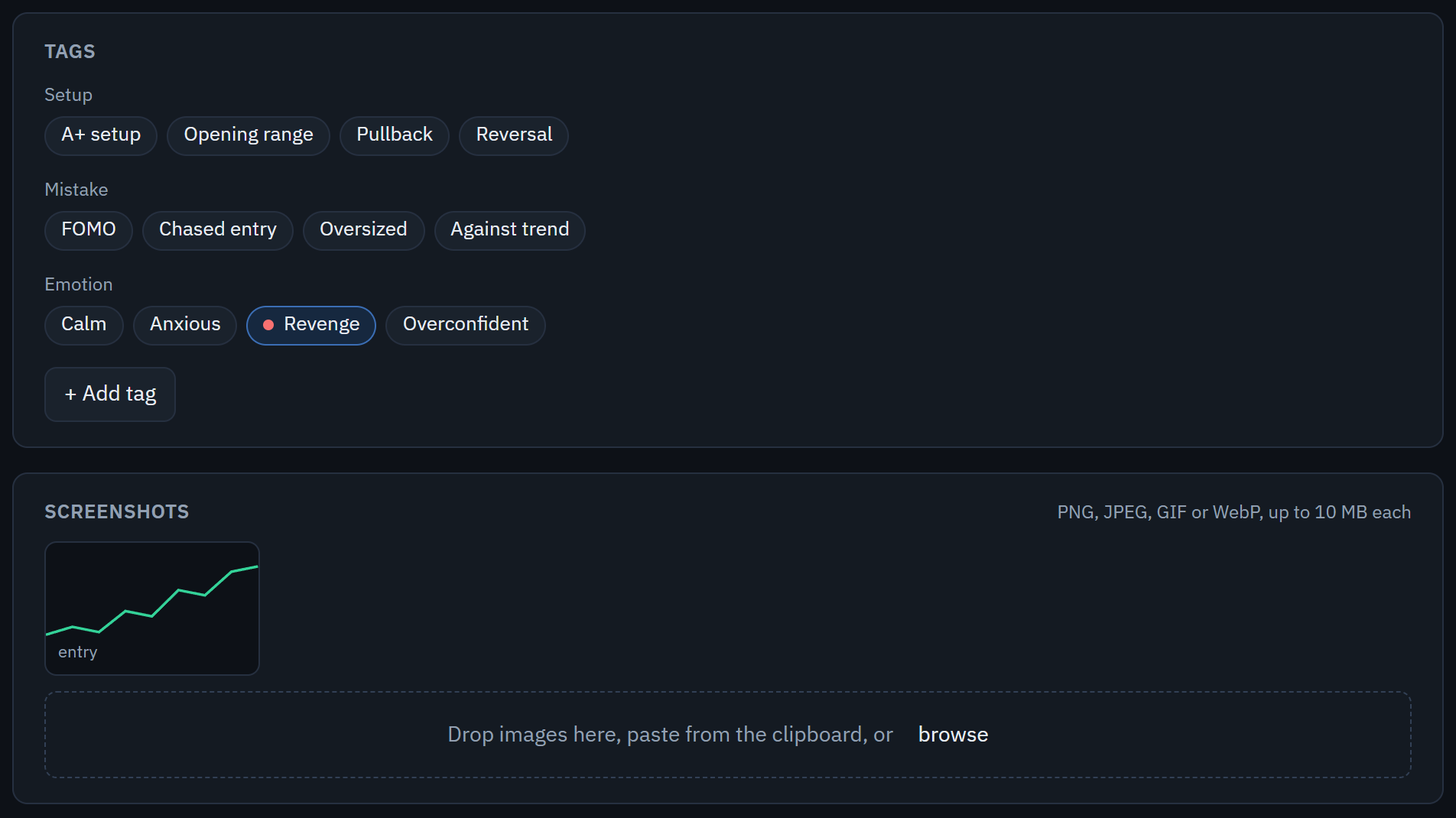
- Tags are grouped by Setup, Mistake and Emotion. Click one to give it to the trade.
- + Add tag makes a new one. Change the groups and tags in Settings › Tags.
- Drop screenshots here, paste them from the clipboard, or browse.
- Screenshots can be PNG, JPEG, GIF or WebP, up to 10 MB each, and a trade can hold 20. There is also a limit on the space your pictures take in all; the page tells you when you reach it. Other kinds of file, including SVG, are refused on purpose.
The Calendar and Reports
- The Calendar shows each day's result, and has a place to write a note for the day, with or without trades.
- Reports break your trades down by contract, weekday, time of day, hold time, tag and account. A trade with several tags is counted under each of them.
The share card
Share, on a trade's page, makes an image of the trade to save or post. You can add one of its screenshots, cropped to fit, and sign it with your username (Settings › Preferences). Points only hides the dollars, quantity and fees.