Export your trades from TradeSea
Roundturn reads TradeSea's list of filled orders and pairs them into trades. TradeSea exports the list one page at a time, so a session usually takes a few files. Choose them all together in Roundturn and they are read as one import.
- Export
- Orders, Filled view, every page
- In Roundturn
- TradeSea: Orders (Filled)
- Times
- The time zone in the file
Where to look in TradeSea
Everything you need is in the panel under the chart. The numbers are the same on every picture of this page.
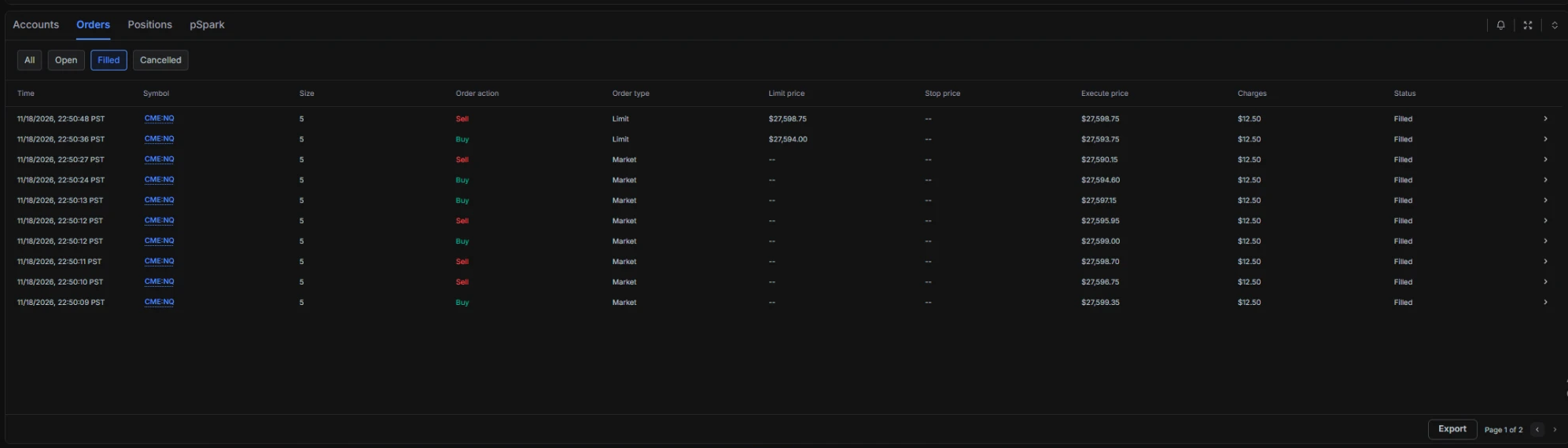
- The Orders tab.
- The Filled view.
- Export, which saves the page on screen.
- The page count and the arrows to the other pages.
-
In TradeSea
Open Orders and select Filled
Under the chart, choose the account at the top left, open the Orders tab, and select Filled. The export saves what the list shows, so in the Filled view the file holds only filled orders, with no cancelled or rejected ones.
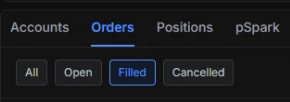
- Orders, not Positions.
- Filled, not All.
-
In TradeSea
Export, then export every page
TradeSea shows 10 orders a page, and Export saves only the page on screen. So export, press › for the next page, and export again, until the last page is saved. Do it one right after another, while nothing new is filling.
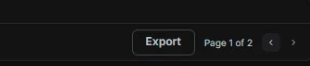
- Export saves the page on screen as a CSV file.
- Page 1 of 2 means two files to export: this page, then the next one (›).
-
In Roundturn
Choose TradeSea: Orders (Filled), then all the files
On the Import page, choose the Roundturn account the trades belong to, then Choose files.
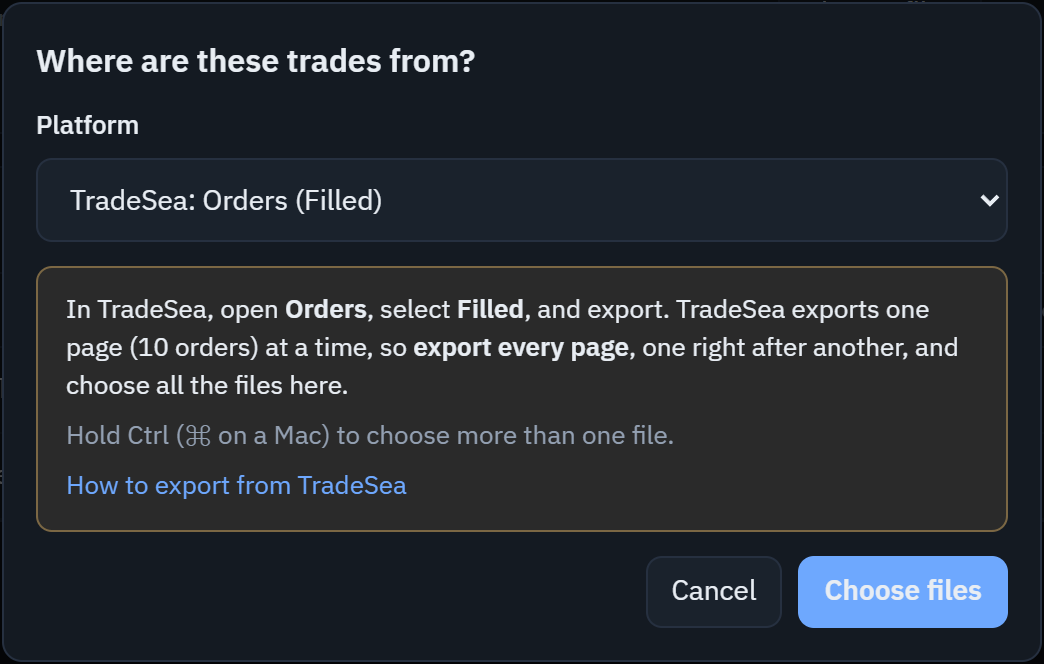
- Pick TradeSea: Orders (Filled).
- The same reminder as above: Filled view, every page.
- Choose files, then choose all the pages at once: hold Ctrl (⌘ on a Mac) and click each file.
-
In Roundturn
Check the preview, then import
The preview says what was read and lists anything to check before you import.
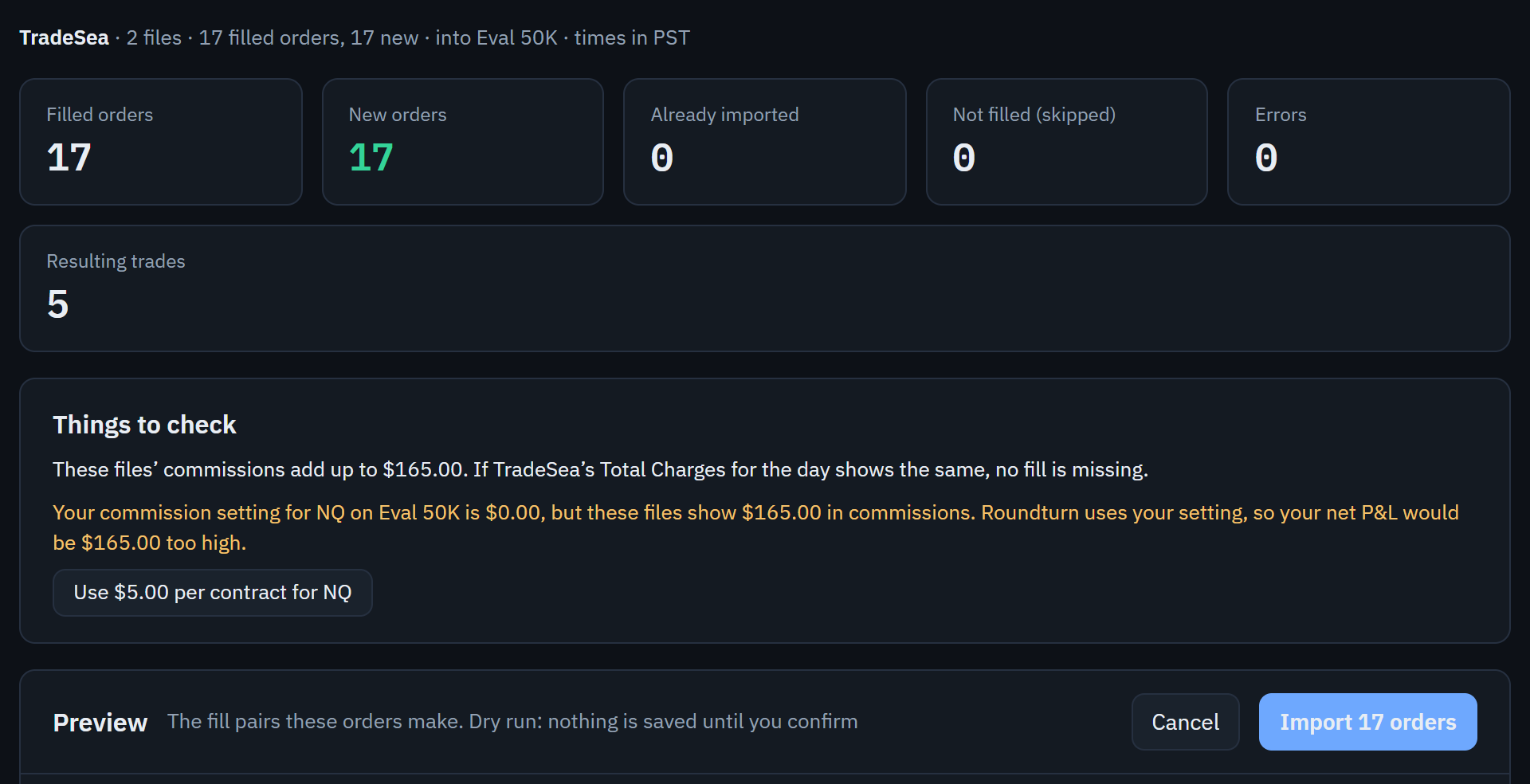
- How many files and filled orders were read, how many are new, and the account they go into.
- What the files' commissions add up to. If TradeSea's Total Charges for the day shows the same, no order is missing.
- If your commission setting differs from TradeSea's rate, one click sets it to TradeSea's.
- Nothing is saved until you import. Every import can be undone from the import history.
Good to know
- One account per export. Export each TradeSea account on its own and import it into its own Roundturn account. If you copy trades, the same orders can go into several accounts; the preview points it out.
- Times are read in the time zone the file names (PST, EST and so on), not your CSV time zone setting. That setting is used only for a time whose zone is missing, and the preview says so.
- Commissions come from each account's own commission setting, not from the file, so every import is charged the same way.
- A position still open at the end of the files is kept until a later import closes it.
- Forgot a page? Add files in the preview adds it to the same import.
If the preview says
- "This looks like one page of TradeSea's list."
- A single file with exactly 10 orders is probably one page of several. If you had more than 10 filled orders, export the other pages and add them.
- "These orders end with 1 NQ long still open"
- If you were flat, the export left out an order: show the whole session in TradeSea's Orders list and export every page again. If you really are still in the trade, import it now and its exit later.
- "These look like files from Tradovate, not TradeSea."
- The files are from another platform. The preview offers to read them as that platform.