Export your trades from Tradovate
Roundturn reads Tradovate's Performance report: one row for each pair of fills that opened and closed a position, with its result. Export it after the session and import the file.
- Export
- Performance report, as a CSV
- In Roundturn
- Tradovate: Performance report
- Times
- Your CSV time zone setting
-
In Tradovate
Export the Performance report as a CSV
Open the Performance report for the account and the days you want, and export it as a CSV with all its columns. Not the Orders or Fills reports: they are laid out differently. Menu names change between Tradovate versions, so look for the Performance report rather than a fixed path.
-
In Roundturn
Choose Tradovate: Performance report
On the Import page, choose the Roundturn account the trades belong to, then Choose files.
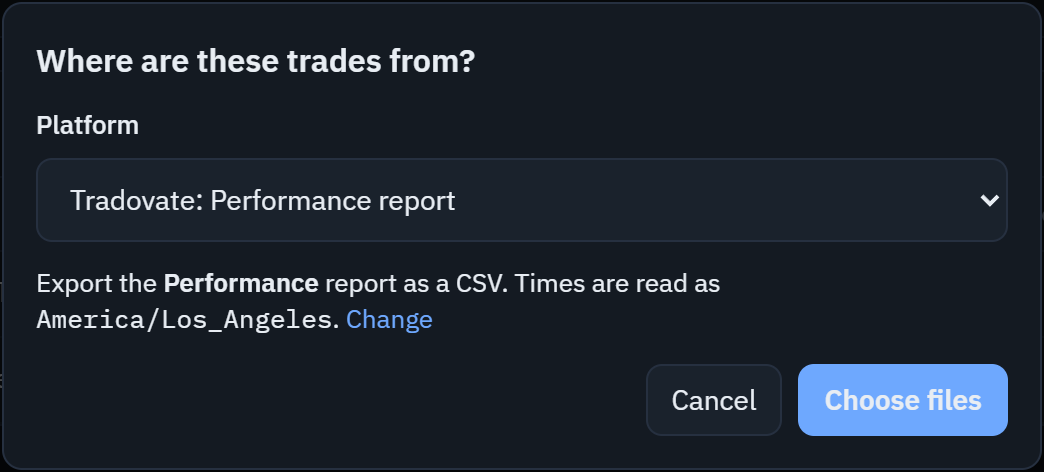
- Pick Tradovate: Performance report.
- The time zone the file's times are read in. Change opens Settings if yours is different.
- Choose files opens your computer's file window. Choose the CSV.
-
In Roundturn
Check the preview, then import
The preview counts the new rows and the ones already imported, and lists anything to check. Nothing is saved until you import, and every import can be undone from the import history.
Good to know
- Times are read in your CSV time zone setting, America/Los_Angeles unless you change it, because the file's times carry no time zone.
- Commissions come from each account's own commission setting, not from the file.
- Choosing the same file again adds nothing twice: rows already imported are left alone.
- Size: a file can be up to 10 MB. A real export is a few hundred KB.
The columns the file must have
symbol, _priceFormat, _priceFormatType, _tickSize, buyFillId, sellFillId, qty, buyPrice, sellPrice, pnl, boughtTimestamp, soldTimestamp, duration. If one is missing, the preview says which.