Docs / Prop accounts and rules
Prop accounts and firm rules
Roundturn checks each evaluation and funded account against its firm's rules, from the trades you import: how far you are from a breach and from the goal, and when a payout is ready.
An account's settings
Each account in Settings › Prop accounts has these tabs:
- Details: name, firm, stage, size, starting balance and purchase date.
- Fees: the commission per contract, round trip, for each contract you trade. Every trade's fees come from here.
- Rules: a simple profit target, max drawdown, trailing type and daily loss limit, if you track your own.
- Firm rules: your firm's rule set, picked and verified (below).
- Payouts: each payout you received, gross, with your split and the net.
- Prop spend: what the account cost you: fees, resets, data.
Set the firm's rules
Open the account's Firm rules tab and find your firm, program, size and phase. Only the versions in force on your purchase date are offered, and the latest is marked Suggested. Check every value against your firm's own page, then Verify. If your program is not listed, start blank and type the rules in.
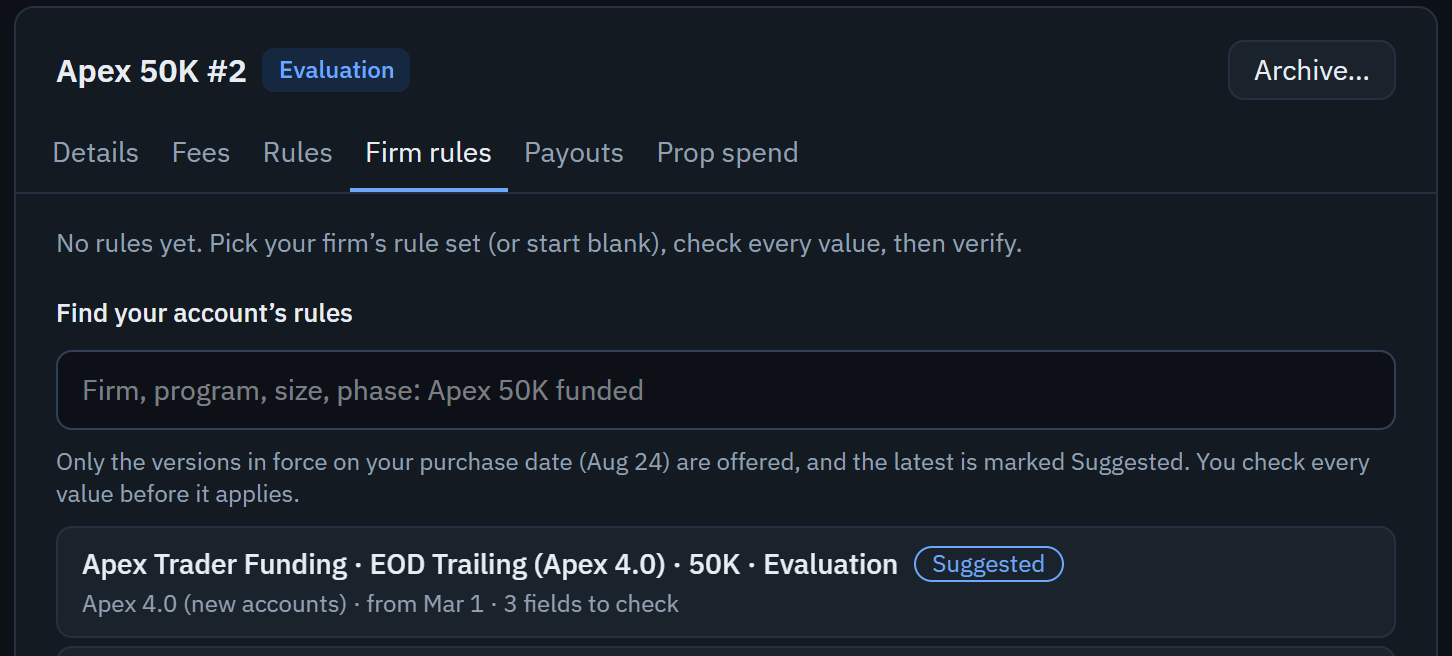
- The Firm rules tab.
- Search by firm, program, size or phase.
- A rule set in force on your purchase date. Each says how many values to check before it applies.
The Accounts tab
The Accounts tab lists every active account against its verified rules. It changes nothing: each account's ⋯ menu leads to its settings.
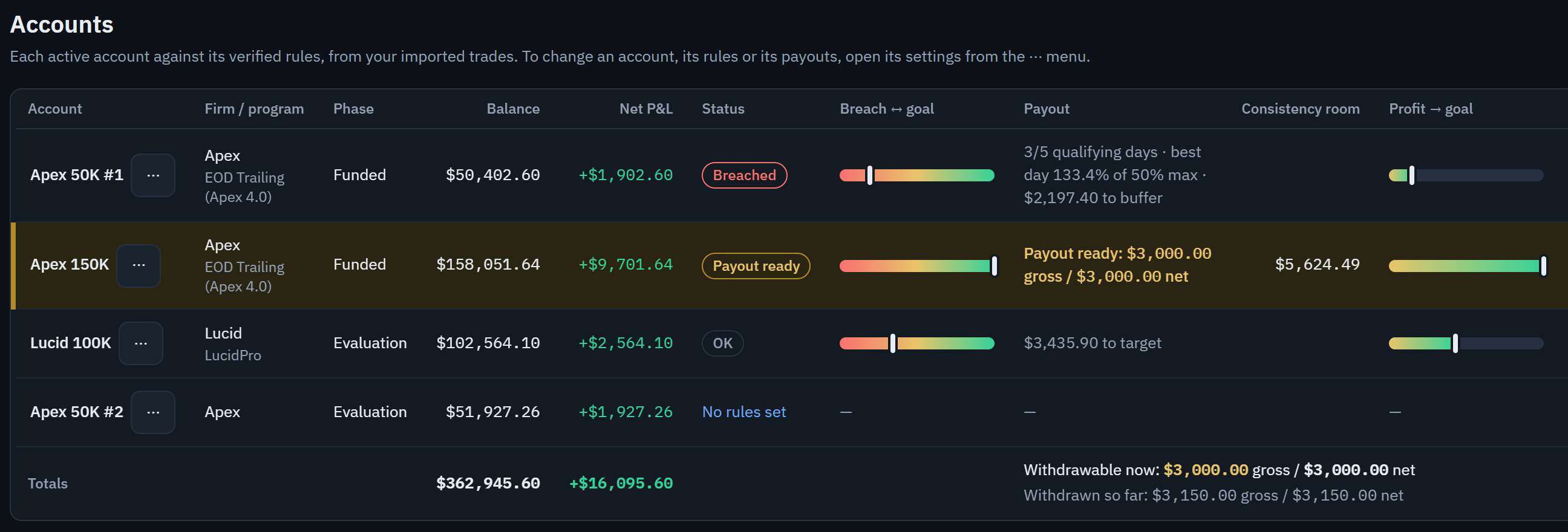
- The ⋯ menu opens the account's settings.
- The status: OK, At risk, Breached, Passed or Payout ready.
- Where the balance sits between the breach level and the goal.
- A funded account whose payout rules are met: the payout column says how much.
- No rules set: the account has no verified firm rules yet. The link leads to its rules.
- Payout shows qualifying days, the consistency rule and the buffer still to build, or what is ready to withdraw.
- Evaluation passed? The Accounts tab offers to set up your funded account.
- Passed, failed or closed accounts can be archived from their settings. Archived accounts are left out of the numbers unless you turn on Show archived.
- Prop business, in Settings › Prop accounts, totals your evaluation pass rate, your prop spend, your payouts and the difference.