Docs / Importing / Any other platform
Import from any other platform
For a platform Roundturn has no reader for, an AI chatbot such as ChatGPT or Claude turns your platform's export into Roundturn's own import file. Roundturn then checks every row, and you check the total against your statement, before anything is saved.
- The file
roundturn-import.csv, made by the chatbot- In Roundturn
- Other platform (converted with an AI chatbot)
- The check
- Your statement's net P&L
-
On your platform
Export your trades, and note the net P&L
Export your trade history for the dates you want, in whatever form your platform gives: fills, orders or trades, as a CSV, a spreadsheet or a text file (Where to find your export, below, links your platform's own help). Then note the net P&L your platform's statement shows for the same dates, after commissions and fees. That number is how you and Roundturn know the chatbot's file is right.
-
In Roundturn
Choose Other platform, and copy the prompt
On the Import page, choose the Roundturn account the trades belong to, then Choose files. Roundturn asks where the trades are from: pick Other platform (converted with an AI chatbot).
Type the net P&L from your statement, then click Copy prompt. See the prompt shows it first if you want to read it.
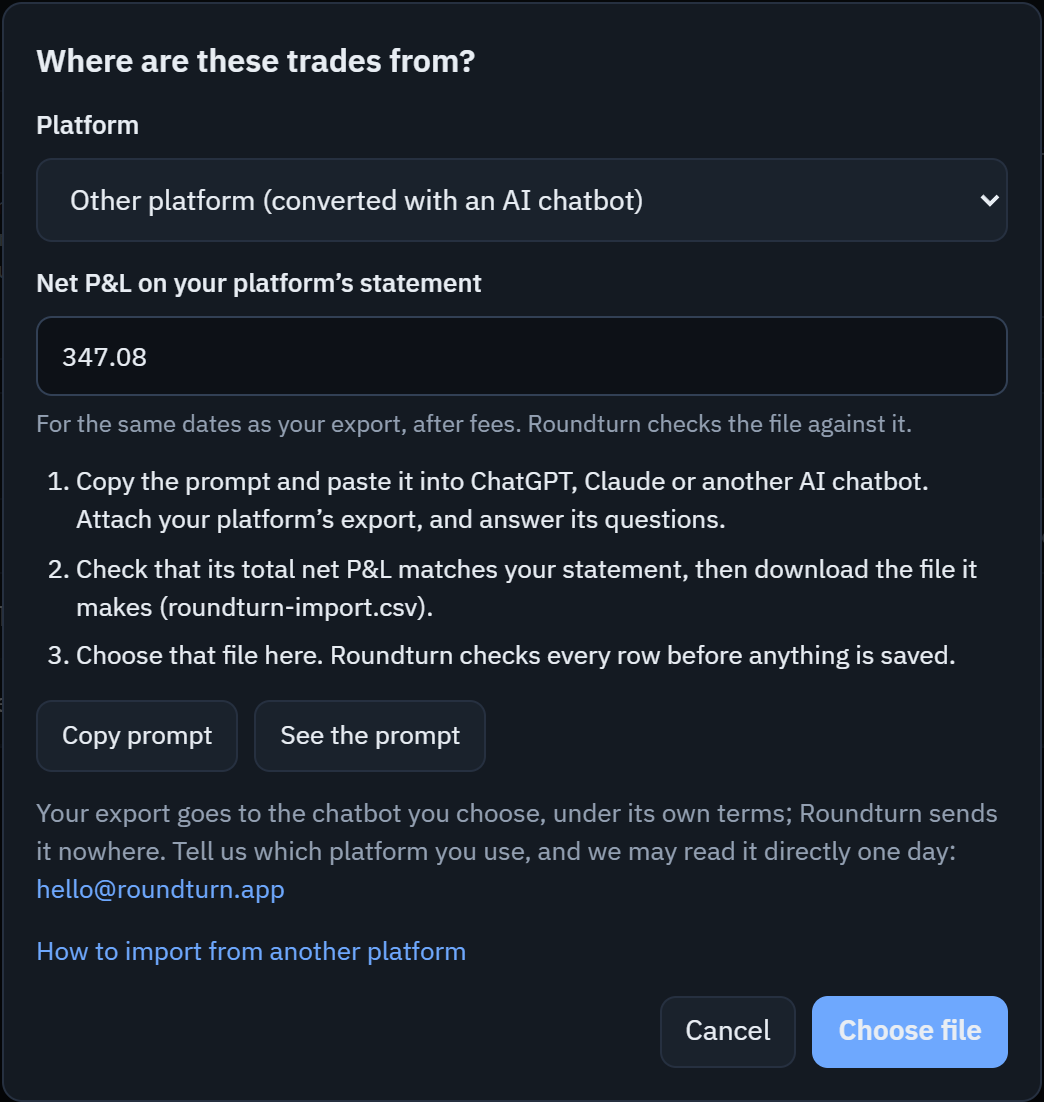
- Pick Other platform (converted with an AI chatbot).
- Type the net P&L from your statement, for the same dates as your export and after fees. A loss starts with a minus:
-125.50. - Copy prompt copies it for the chatbot. See the prompt shows it first.
- Choose file, once the chatbot has made the file (step 4). It stays off until a figure is typed.
-
In your AI chatbot
Paste the prompt, attach your export, and answer its questions
Open ChatGPT, Claude or another chatbot that reads attached files. Paste the prompt and attach your export. The chatbot asks only what the file does not say for certain: the time zone of its times, whether a row is a fill or a whole trade, your fees if the file has none, and which account, if there are several.
Before it gives you the file, it shows a summary: the number of round turns, the dates, and the total gross P&L, fees and net P&L. Check the net P&L against your statement. If they differ, ask it to find out why before going on.
Then download
roundturn-import.csv. If the chatbot shows the file as text instead, copy it into a plain text file and save it with that name. -
In Roundturn
Choose the file, check, and import
Choose file opens your computer's file window: choose
roundturn-import.csv. The preview shows the round turns, the days they cover, and their gross P&L, fees and net P&L, beside the figure you typed: either matches your statement, or how far apart the two are.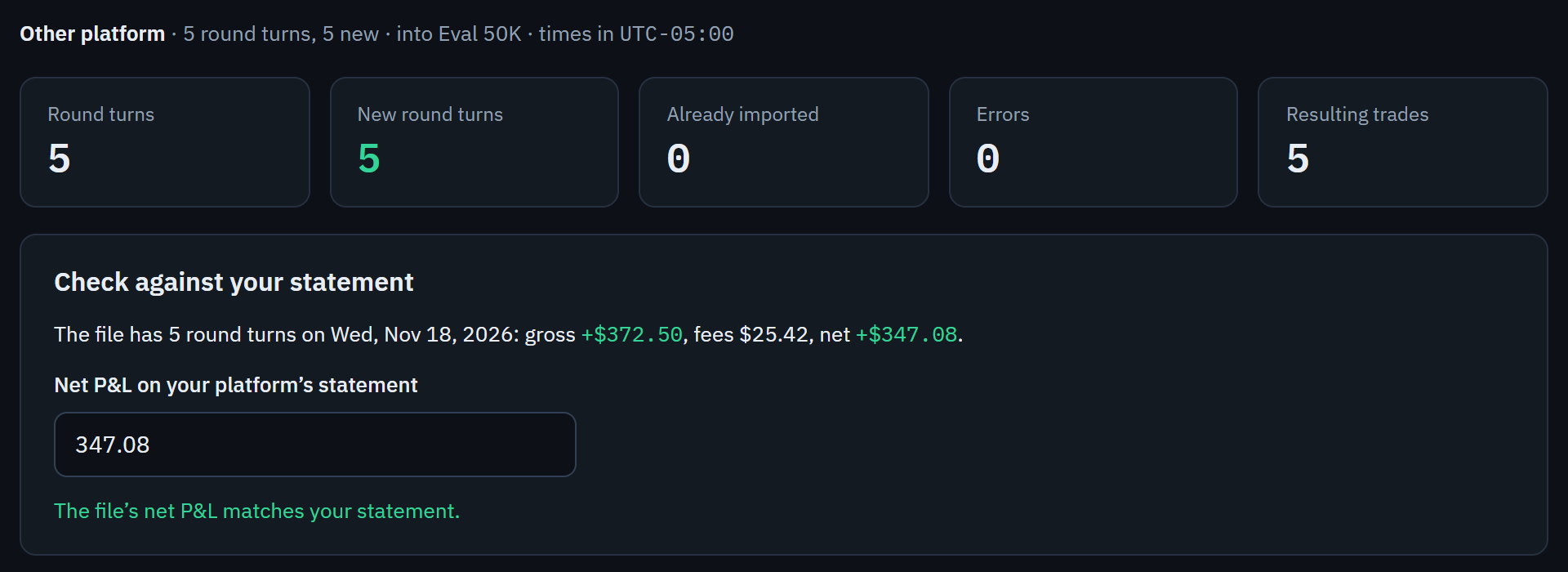
- What the file holds: its round turns and days, and their gross P&L, fees and net P&L.
- The figure you typed from your statement. Correct it here if it was wrong.
- The file’s net P&L matches your statement, or how far apart the two are.
Rows that do not add up are listed by line and left out; the rest can be imported.

- The line of the file, and what is wrong with it: here the gross P&L the chatbot wrote is not what the prices make. Ask the chatbot to check that round turn against your export.
Nothing is saved until you click Import, and every import can be undone from the import history.
Where to find your export
Your platform's own help says where its export is. Choose one that lists each fill or each trade with its time and price: a summary of totals is not enough. Trade on Tradovate or TradeSea, or with the Round Turn Monitor in NinjaTrader 8? Use their own import instead: Tradovate, TradeSea, Round Turn Monitor.
- NinjaTrader 8
- The Control Center's Executions tab lists the current day's executions, and Export in its right-click menu saves them as a CSV or Excel file.
- NinjaTrader's help: Executions tab
- TopstepX, and other firms on ProjectX
- Export on the Orders or Trades tab at the bottom of the page saves your trades for the dates you choose; other firms' platforms on ProjectX have the same Export.
- Topstep's help: TopstepX, under Exporting Trades
- Sierra Chart
- In the Trade Activity Log, show the fills (Fills in the Trade Activity Type filter), then File >> Save Log As saves what is shown as a text file, its fields separated by tabs.
- Sierra Chart's help: Trade Activity Log, Saving to a Text File
- Quantower
- In the Trades panel, Export Data in the panel's menu (top left, before its title) saves the table as a CSV file, except with CQG, which does not permit data export.
- Quantower's help: Single Panel, the panel's menu
- ATAS
- Use Export Statistics in the Trading Journal.
- ATAS's help: Trading Journal (trading statistics)
- R|Trader Pro (Rithmic)
- Rithmic publishes no export guide we can link to, so steps with screenshots will be added here. Until then, export your fills for the dates you want.
What Roundturn checks
- The file is Roundturn's import file, version 1: exactly its eleven columns, with
1as the version on every row. Anything else, your platform's own export included, is refused whole, with the reason. - Every row: a contract Roundturn knows, long or short, a whole number of contracts, times with their UTC offset, an exit no earlier than the entry and not in the future, and, for one contract, prices that are a whole number of ticks.
- The money: the row's gross P&L must be what its prices make (the price move × the contracts × the contract's dollars per point), to the cent, and its net P&L must be gross minus fees. This catches a micro written as a mini, a long written as a short, or a misread price.
- Trades already imported are recognised and left alone, even when the chatbot writes them a little differently the next time. So you can ask it to fix a refused row and import the corrected file: only that row is added.
- The total: the file's net P&L against your statement's. The import waits until you type the figure. If they differ, the preview says by how much; you can still import if you know why.
The file, column by column
The prompt tells the chatbot all of this. It is here so you can check its work, or write the file yourself. One row per round turn: a position in one contract, from flat back to flat.
roundturn_version,symbol,side,qty,entry_time,entry_price,exit_time,exit_price,gross_pnl,fees,net_pnl
1,NQZ6,long,2,2026-11-18T09:31:05-05:00,21000.25,2026-11-18T09:33:10-05:00,21010.5,410.00,9.00,401.00
1,MESZ6,short,1,2026-11-18T10:01:00-05:00,6001.25,2026-11-18T10:05:00-05:00,6000.00,6.25,1.24,5.01roundturn_version1on every row.symbol- The contract as Tradovate writes it: the exchange's root, the month code and the year, so
NQZ6is December 2026's E-mini Nasdaq-100. The root alone (NQ) when the export does not show the month. sidelongorshort.qty- The contracts bought in the round turn, which is also the contracts sold.
entry_time- The first opening fill, with its UTC offset:
2026-11-18T09:31:05-05:00. entry_price- The average price of the opening fills, not rounded, in the exchange's units.
exit_time- The fill that made the position flat, written like
entry_time. exit_price- The average price of the closing fills.
gross_pnl- Dollars before fees, negative for a loss.
fees- The round turn's commissions and fees, both sides together, zero or more.
net_pnlgross_pnlminusfees.
Good to know
- Your export goes to the chatbot you choose, under that company's own terms. Roundturn never sends your file to an AI, and uses none itself: it only reads the file the chatbot gives you. You can blank out account numbers before you attach the export.
- Fees come from each account's own commission setting, charged on every trade, as for every import. The preview shows the file's fees beside your setting and offers to use them.
- Times carry their own UTC offset, so the file says its own time zone. The preview shows them in that offset, or in your CSV time zone setting when the file has more than one (across a daylight saving change).
- A position still open at the end of the export is not a round turn yet. The chatbot leaves it out; import it after it is closed.
- One file per import, up to 10 MB and 50,000 round turns.
If the preview says
- "This is not Roundturn's import file."
- The file is not the chatbot's, most likely your platform's own export. Choose
roundturn-import.csv, or start a new chat with the prompt. - "The header row is not Roundturn's import file version 1"
- The chatbot renamed, added or left out a column. Ask it to use exactly the header row the prompt gives, with no other columns.
- "roundturn_version is '2', and Roundturn reads version 1"
- The file was made for another version of the format. Copy the prompt again from the Import page and start a new chat.
- "gross_pnl … is not what the prices make"
- The contract, the side, the contracts or a price is wrong in that row: often a micro written as a mini, or a platform's own code for a contract. Ask the chatbot to check that round turn against your export, then import the corrected file.
- "… has no UTC offset"
- Ask the chatbot to write every time with its offset, like
2026-11-18T09:31:05-05:00. - "the contract … is not in Roundturn's contract list"
- The chatbot wrote the platform's own code (CQG writes EP for ES), or Roundturn does not know the contract yet. Ask for the exchange's root; if it is right, tell us the contract.
- "The file's net P&L is …, but your statement says …"
- A trade may be missing, doubled or wrong, the fees may differ, or the statement covers other dates. Ask the chatbot to compare the file with your export row by row.